Team and roles
Invite the people who run support, payments and engineering, each with the role their work needs. Manage them in Settings → Team.
Roles
Every member can see the workspace, its cases, the policy and the simulator, and the team list. Beyond that:
| Role | Typical person | What they can do |
|---|---|---|
| Owner | Founder, head of payments | Everything: publish the policy, go live, stop and resume the automation, integrations and secrets, API keys, the team (including making someone an owner), the Audit Log, tickets, refunds and cancellations, going beyond the policy, Payment Analytics and alerts. |
| Admin | Operations lead | The same as an owner, except they cannot make someone an owner or manage owners. |
| Support agent | Support team | Read, answer and assign tickets; refund and cancel within the policy; turn the emergency stop on (not off). |
| Analyst | Finance, data | Read tickets and Payment Analytics. Changes nothing. |
| Developer | Engineers | Payment connections, webhooks and secrets, the handoff destination, the widget, API keys; turn the emergency stop on (not off). They do not see tickets, helpdesk connectors, inboxes or Payment Analytics and cannot publish the policy. |
Only owners and admins can:
- publish the policy and use Try Transactions,
- go live,
- turn the emergency stop off,
- refund or cancel beyond the policy (with an authenticator code),
- read the Audit Log,
- change ticket settings, helpdesk connectors and inboxes, and payment alerts.
There are no custom roles.
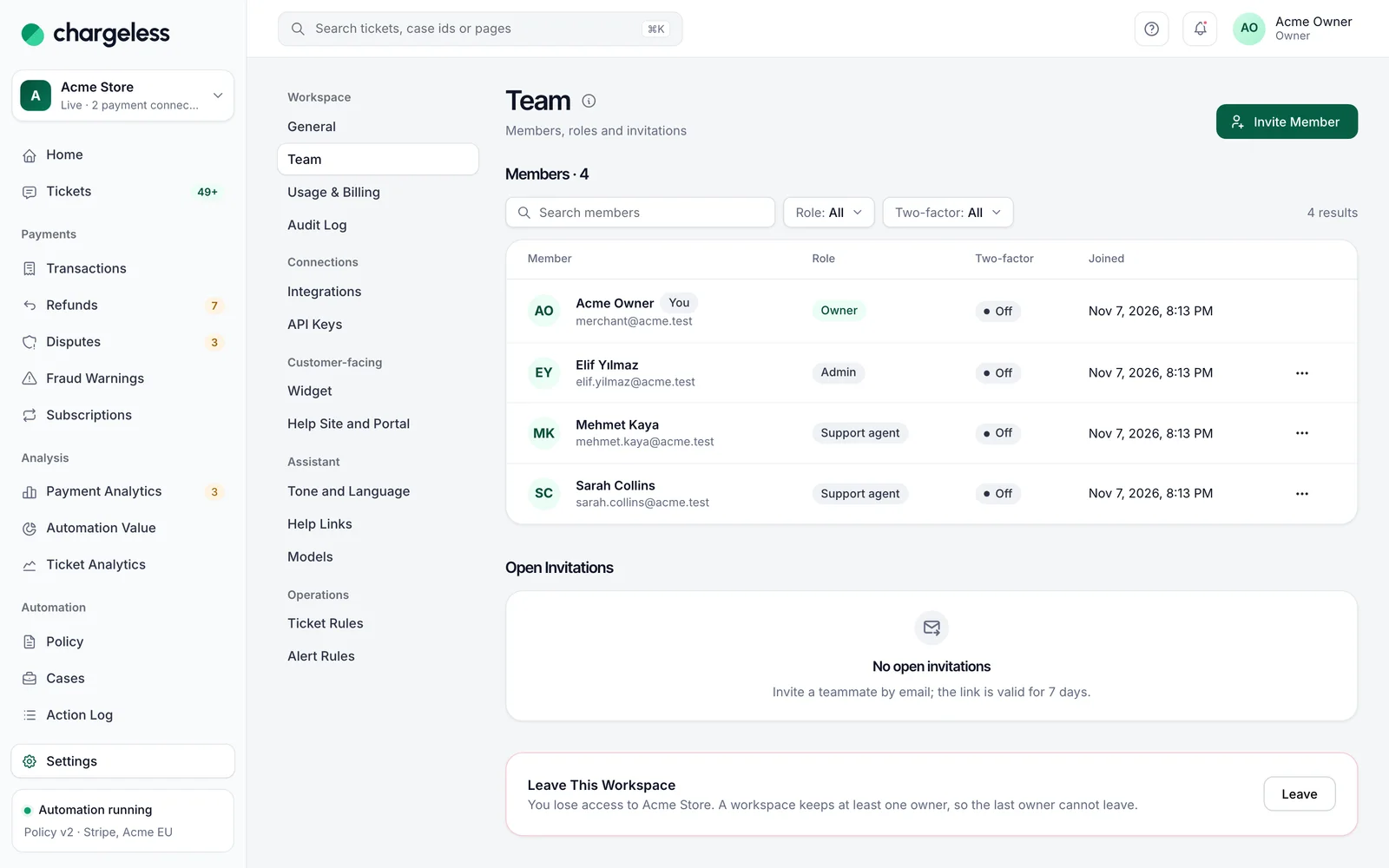
Invite someone
- On Settings → Team, choose Invite Member ("Invite a Teammate").
- Enter their email address and pick a role.
- Choose Send Invitation. You will be asked to confirm it's you.
The invitation is valid for 7 days, and only the invited address can accept it. Open invitations can be resent (Resend, which invalidates the old link) or withdrawn (Revoke).
If the person who sent an invitation is removed, leaves, or gets a role that can no longer grant it, their open invitations are revoked automatically.
Change a role or remove someone
- A role change takes effect on the member's next click.
- Remove from Workspace takes access away at once and signs them out of this workspace. Their account and other workspaces are not affected.
- Members can leave on their own with Leave This Workspace.
- A workspace always keeps at least one owner. The last owner cannot be removed and cannot leave.
Both changes ask you to confirm it's you, and both are recorded in the Audit Log.
API keys outlive their creator. A key keeps working after the person who created it leaves. Settings → API Keys flags such keys ("Created by someone who is no longer a member"). Check whether your backend still uses them, and revoke them if not.
Several workspaces
One account can belong to several workspaces, for example one per brand. Switch between them from the workspace menu. Each workspace has its own team, roles, policy and settings.