Write and publish your policy
Your policy is the rulebook the automation follows. It says what Chargeless may do on its own: which refunds it makes, which subscriptions it cancels, what it does with a fraud warning and how it answers a dispute. Everything outside the policy goes to your team.
You edit it on Policy in the panel ("What the automation may do on its own"). Owners and admins can publish; other roles can read it.
Good to know. Publishing takes effect immediately. A decision already made keeps the version it was made under (the case page shows it); anything not yet decided, including a customer pressing Confirm after you publish, is decided under the new version. There is no human review in between, so read the summary of changes before you publish.
The page at a glance
The Policy page has five tabs:
| Tab | What it is for |
|---|---|
| Workflow | The decision path for each kind of request, step by step, in plain words. Start here. |
| Rules | Your own custom rules (for example "hand off any refund over 30 days old for a business account"). |
| Versions | Every published version, who published it, when, and with which note. Restore from here. |
| Advanced: JSON | The same policy as a policy/v1 JSON document, checked against the schema as you type. |
| Simulator | Replays a draft or a published version over your past decisions; nothing is changed. See Test a draft in the Simulator. |
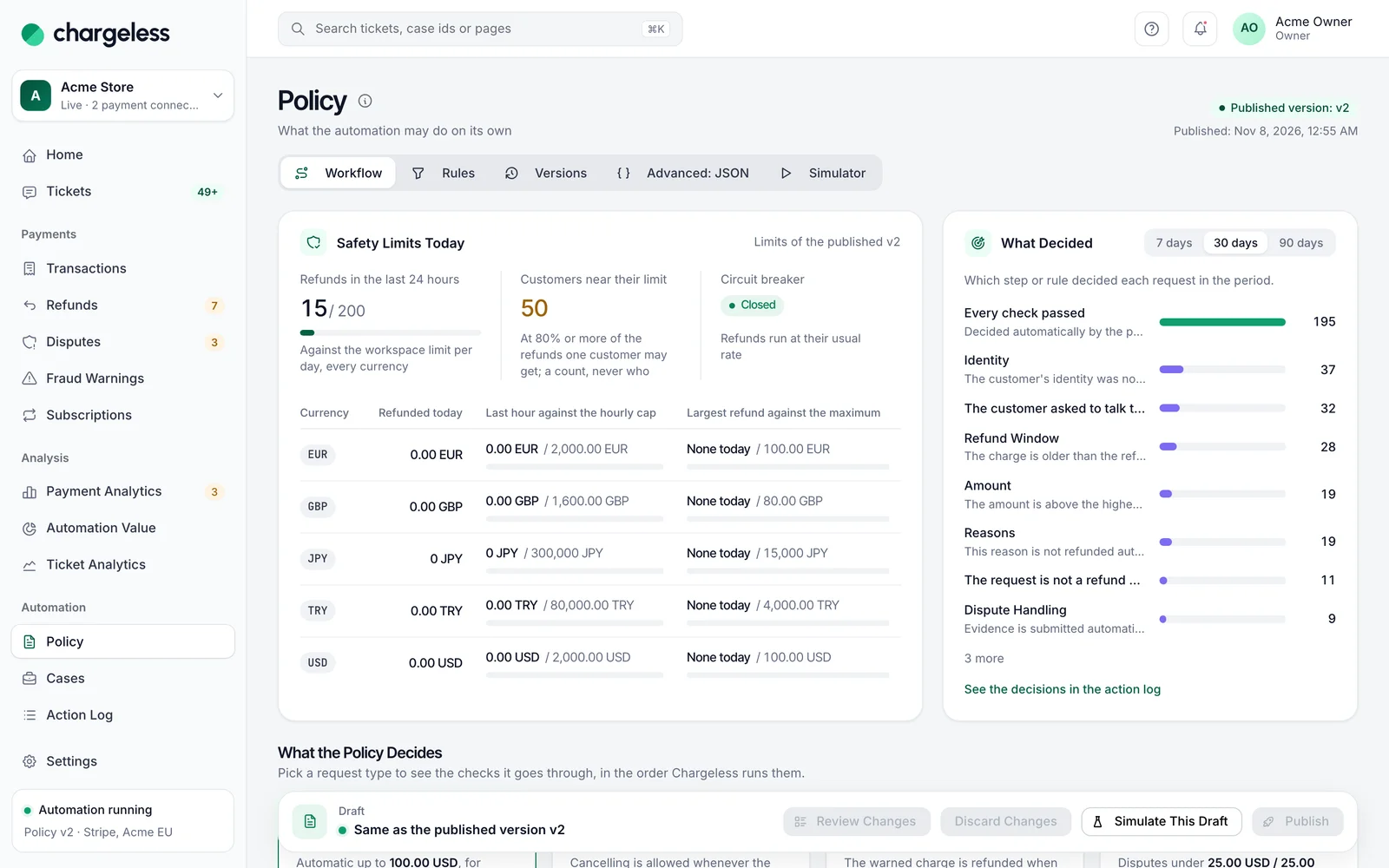
At the top of Workflow, Safety Limits Today shows how close you are to your limits right now (refunds in the last 24 hours, customers near their limit, whether the circuit breaker is open), and What Decided shows which step or rule decided recent requests.
The four kinds of request
Under What the Policy Decides, pick a card:
- Refunds: a customer asks for a refund.
- Cancellations: a customer asks to cancel a subscription.
- Fraud Warnings: the card network warns that a charge may be fraudulent (an early fraud warning).
- Disputes: a customer disputes a charge with their bank.
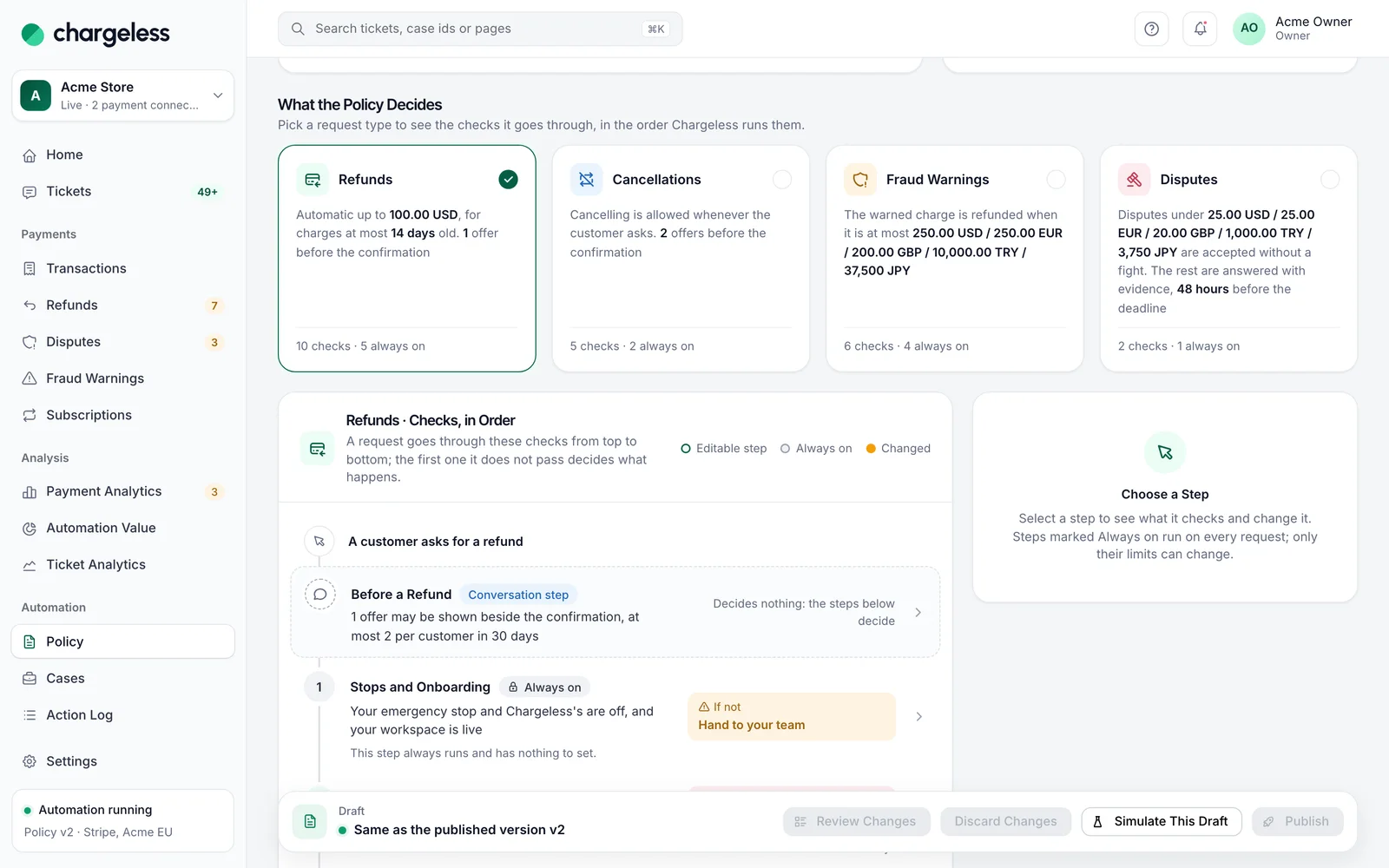
Each card opens Checks, in Order. A request goes through the checks from top to bottom, and the first check it does not pass decides what happens. Next to each check you see what happens "If not": Hand to your team, Decline, or The matching rule decides. Steps marked Always on cannot be switched off; some of them have limits you can tune.
Refunds
| # | Check | What it means | If not |
|---|---|---|---|
| 1 | Stops and Onboarding (always on) | No emergency stop is on, and your workspace is live. | Hand to your team (a stop); Decline (not live yet) |
| 2 | Identity | The customer proved who they are in a way your policy accepts. | Decline |
| 3 | Refundable Charge (always on) | The charge belongs to this customer, is not disputed, is not already fully refunded, and its payment connection is live and reachable. | Decline (hand off when the connection or your system is the problem) |
| 4 | Reasons | The customer's reason is one you refund automatically (and, optionally, the charge type is one you allow). | Your "otherwise" choice |
| 5 | Refund Window | The charge is no older than your window (1–365 days). | Your "otherwise" choice |
| 6 | Amount | The amount fits your highest automatic refund and, if you allow only whole refunds, is the whole charge. Never more than what is left to refund. | Your "otherwise" choice |
| 7 | Per Customer (always on, tunable) | The customer has not hit their refund count for the period. | Your "otherwise" choice |
| 8 | Workspace Limits (always on, tunable) | Your workspace stays under its hourly refund amount and daily refund count. | Hand to your team |
| 9 | Circuit Breaker (always on, tunable) | Refunds are not running far above their usual hourly rate. | Hand to your team |
| 10 | Custom Rules | None of your rules matches. | The matching rule decides |
If the request passes all of them, the refund is made automatically.
Under When a Refund Doesn't Pass a Check you choose what "otherwise" means for steps 4–7: Decline and hand to your team (the default: the customer hears no, and your team gets the case to review) or Decline.
Settings you choose for refunds:
- Refund reasons accepted: Charged twice, Forgot to cancel, Doesn't recognise the charge, Not as described, Service problem, Other.
- Charge types (optional): First charge, Renewal, Trial conversion, Upgrade, One-time, Top-up. Leave it empty to accept every type. Stripe does not report a charge type, so if you list types, every Stripe refund falls to your "otherwise" choice.
- Refund window (days).
- Highest automatic refund, and Partial refunds allowed or Whole charges only.
- Refunds per customer and Per-customer window (days). Setting the count to 0 turns automatic refunds off for customers.
Cancellations
- Stops and Onboarding
- Identity
- Cancellable Subscription (always on): the subscription exists, belongs to the customer and can still be cancelled.
- Cancellation Rule: Always (the default), Never, or When a condition holds (a CEL expression).
- Custom Rules
If it passes, the subscription is cancelled automatically. You can also say that cancelling for a given reason within a number of days (1–90) should offer a refund of the last charge; that refund then goes through the whole refund path above like any other.
Fraud warnings
- Stops and Onboarding → 2. Refundable Charge → 3. Refund on a Warning → 4. Workspace Limits → 5. Circuit Breaker → 6. Custom Rules
There is no identity step: the warning comes from the card network, not from a customer. Under Refund on a Warning you choose whether to refund warned charges, whether to also cancel the customer's subscription, and up to which amount. Off means the charge is not refunded; above the amount, your team gets the case.
Refunding a charge that received an early fraud warning usually prevents the chargeback that would follow, and its fee.
Disputes
- Stops and Onboarding
- Dispute Handling: disputes below your accept amount are accepted (fighting them would cost more than they are worth). At or above it, choose Submit evidence automatically or Hand to your team (the default for a new document; the Balanced preset submits evidence). Evidence is submitted a set number of hours before the deadline (1–168, default 48).
When Chargeless submits evidence, it builds the package from what it knows (the charge, the customer's history, refunds your policy declined). A model may draft the narrative; the draft is checked and Chargeless falls back to plain evidence if the check fails.
Amounts and currencies
Every amount in the policy has a currency. Your policy's amounts start in your workspace's main currency, the one you chose when you created the workspace. If you take payments in other currencies too, give the policy limits in each of them: that is the normal setup for a shop that sells in several currencies.
Currencies You Charge In, on the Workflow tab, lists every currency your workspace took payments in over the last 90 days, how many charges, and whether the policy you are editing has a limit in it. A currency with payments and no limit is marked, with how many requests went to your team because of it. Choose Add limits on its row to enter, in that currency:
- the highest automatic refund and the hourly refund volume for the workspace (both are required, so that every currency with a refund limit also has an hourly one);
- the fraud-warning refund limit and the dispute threshold, when your policy uses them.
You type every amount yourself: Chargeless never fills one in from another currency. Up to 10 currencies besides the main one. You can also add a currency under any single amount with Add Another Currency.
When a charge comes in, Chargeless compares it like this:
- If your policy states an amount in the charge's currency, it uses that.
- Otherwise, if your payment provider recorded what the charge settled for in your connection's settlement currency, and your policy states that currency, it uses the settled amount. Stripe records it for every charge in another currency than the one your account pays out in. Paddle and FastSpring record it when your payout currency differs from the charge's. Adyen, dLocal, Ecommpay and your own payment system do not yet, so their charges are compared only in their own currency.
- Otherwise, the request goes to your team (reason: "The policy has no limit in this charge's currency").
Chargeless never converts currencies at a rate of its own, and it never adds amounts in different currencies together. Workspace volumes are counted per currency.
A team member can still refund such a charge from the panel: without Beyond policy the refund is declined with the same reason, and with Beyond policy (owners and admins, confirmed with an authenticator code; from a ticket, Override the Policy) it goes through and is recorded as a refund beyond policy. Every limit that protects money still applies to it: your emergency stop, the refundable remainder, the per-customer limit, the daily refund count and the circuit breaker. The hourly refund volume cannot, because the policy has none in that currency; the refund still counts toward that currency's hourly volume, so a limit you add later applies at once. Adding limits in the currency is the better fix: then the automation decides those refunds on its own.
Identity
Under the Identity step, choose how customers must prove who they are before the automation looks up their payments:
- Signed in on your site: your site passes a signed token to the widget (see Widget and identity).
- Email code: the customer types their email address and a six-digit code we send there.
- Either.
The matched level (merchant-hosted systems only)
If your payments run on your own system (a merchant-hosted provider, not Stripe), you can switch on a lighter level for email and helpdesk tickets: the customer is matched by identifiers in the ticket instead of proving their identity. The panel calls it "Order Number + Email Verification"; the combinations it actually accepts are:
- email address and card last 4,
- transaction reference and card last 4,
- email address and transaction reference.
It allows refunds only, up to an amount you must set (no higher than your highest automatic refund), and only while the ticket's replies go to the requester alone. It is off by default and is never offered in the chat. Publishing refuses it on a workspace that pays through Stripe.
Custom rules
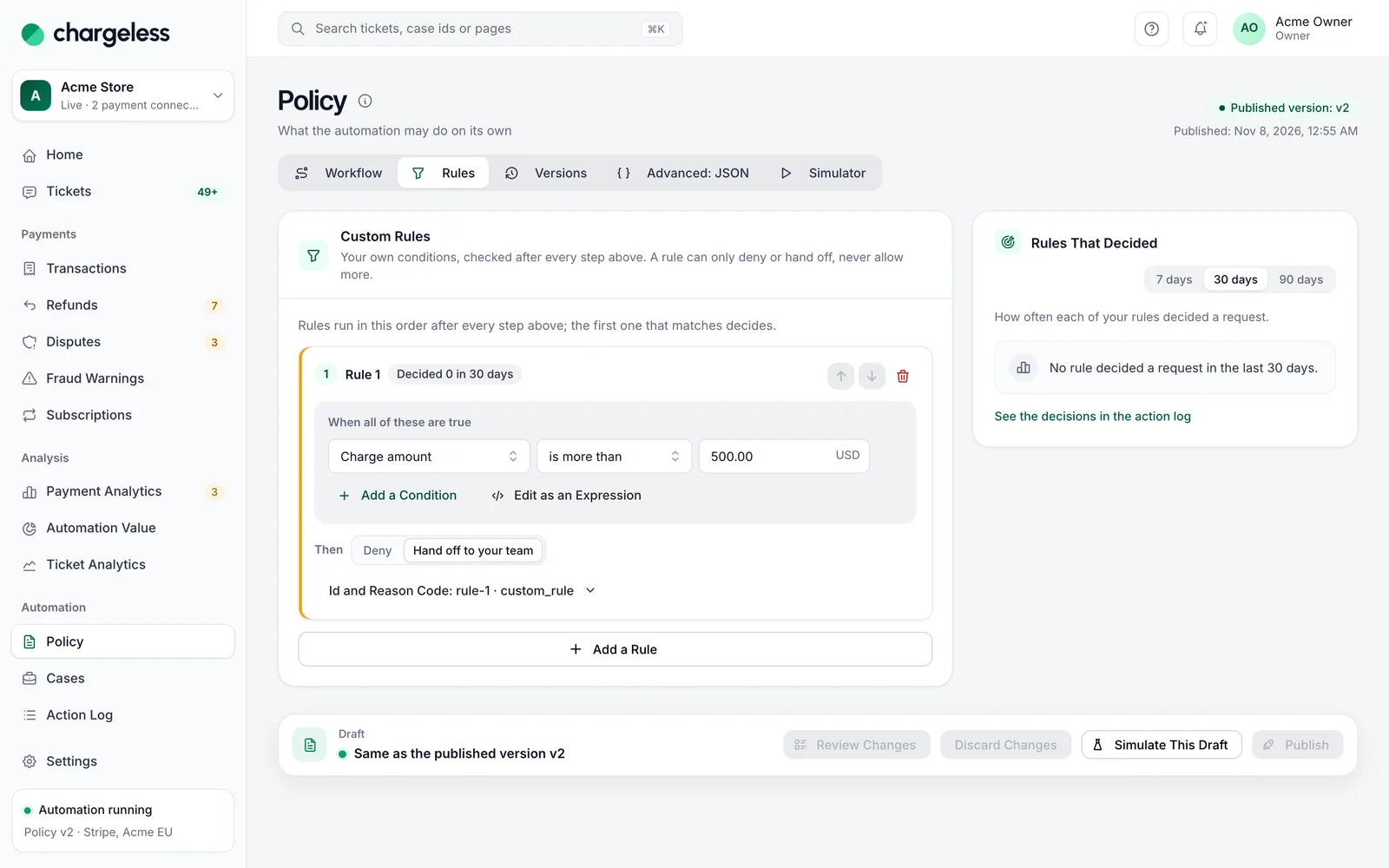
On the Rules tab, build rules under When all of these are true, from these facts: Charge amount, Charge type, Product type, Charge disputed, Charge age, Customer's refunds, Customer account, Reason given, Request comes from, Customer's disputes, Payment connection. Each rule either declines or hands to your team, with a reason code of your own that you will see in the Action Log.
- Rules run after every built-in check; the first rule that matches decides.
- A rule can only make the outcome stricter. It can never approve something a check refused.
- If a rule cannot be evaluated, the case goes to your team.
- You can have up to 50 rules. Anything the builder cannot express can be written with Edit as an Expression (CEL).
Safety limits you can tune but never switch off
- Refunds per customer over a period. It counts every refund on all of the customer's verified accounts, including refunds your own system reports.
- Refund amount per hour (workspace), per currency.
- Refunds per day (workspace).
- Circuit breaker: hands refunds to your team when the hourly rate exceeds a multiple of your usual rate.
Your team can go beyond the policy from a ticket with an override (see Tickets), but never past these limits, the emergency stops, or what is left to refund on a charge.
Draft, review, publish
Every change you make is a Draft, kept in your browser until you publish or discard it. The draft bar at the bottom shows how many changes are unpublished and offers:
- Review Changes: every change, in words.
- Simulate This Draft: opens the Simulator tab with the draft.
- Discard Changes.
- Publish: shows what changes and asks for an optional Note for the version history (up to 280 characters: what changed and why). Confirm with Publish Now.
If the document has a problem, publishing stops and lists what is wrong under "The document is not valid:".
Versions and restore
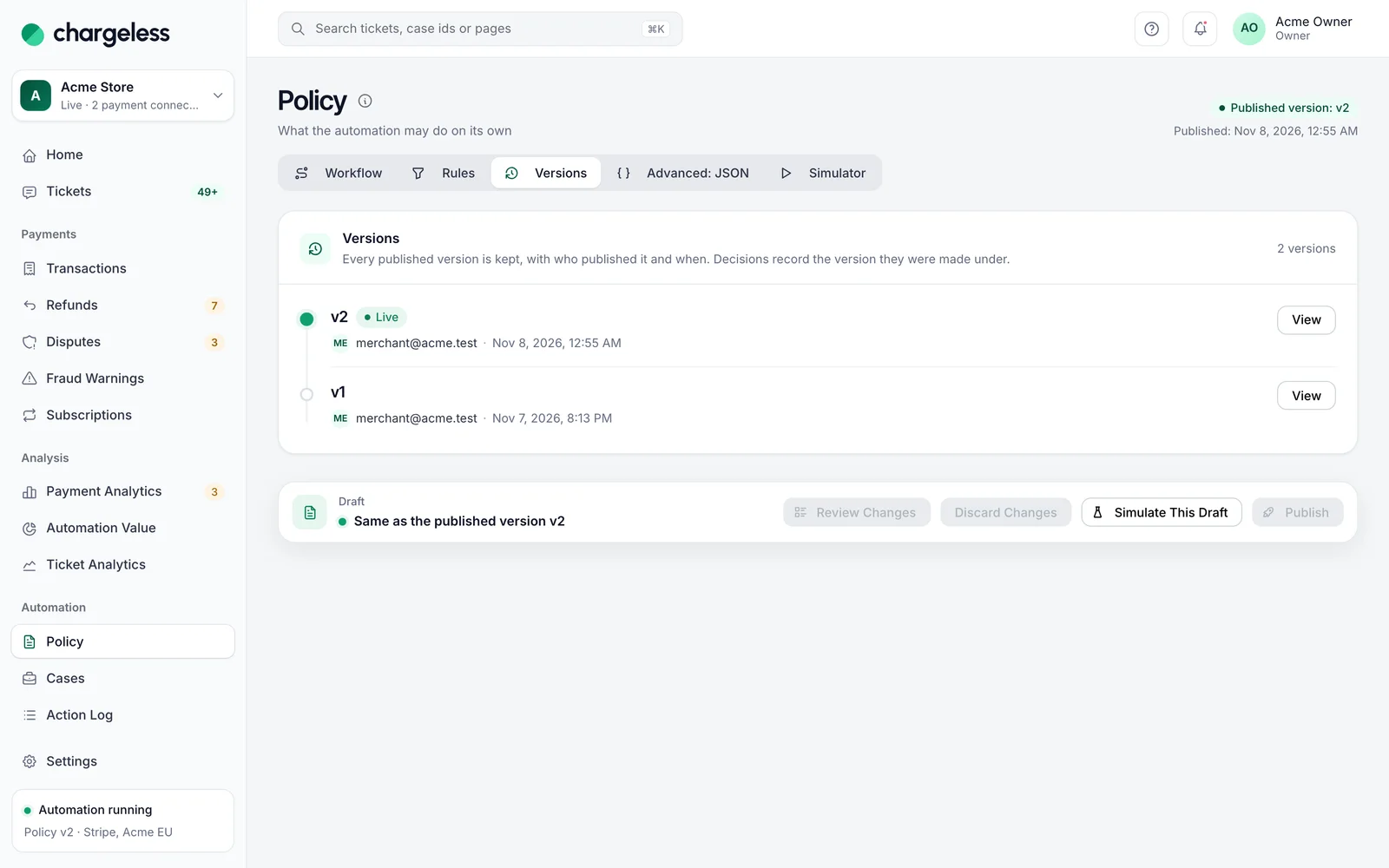
The Versions tab keeps every published version with who published it, when and their note. View compares a version with another one, In words or as a JSON diff. Restore as Draft loads an old version as your draft; nothing changes until you publish it, and it is then recorded as a new version "restored from" the old one.
Every decision records the policy version it was made under, so you can always see which rules applied to a past case.
Test a draft in the Simulator
The Policy page's Simulator tab ("Replay a draft over your history") replays your past refund and cancellation decisions with a draft or a published version. Nothing is changed.
- Open it from the draft bar (Simulate This Draft) or choose the Simulator tab.
- Set Look back (days) (1–365, 30 by default) and run it.
- Read the results:
- By Outcome: how many cases would be allowed, declined or handed off, with amounts per currency.
- Top Reason Codes: why.
- Cases Whose Outcome Would Change: each case whose outcome differs from what actually happened.
- Merchant limit trips and Circuit breaker trips: limits are recomputed in time order, as if the draft had been live.
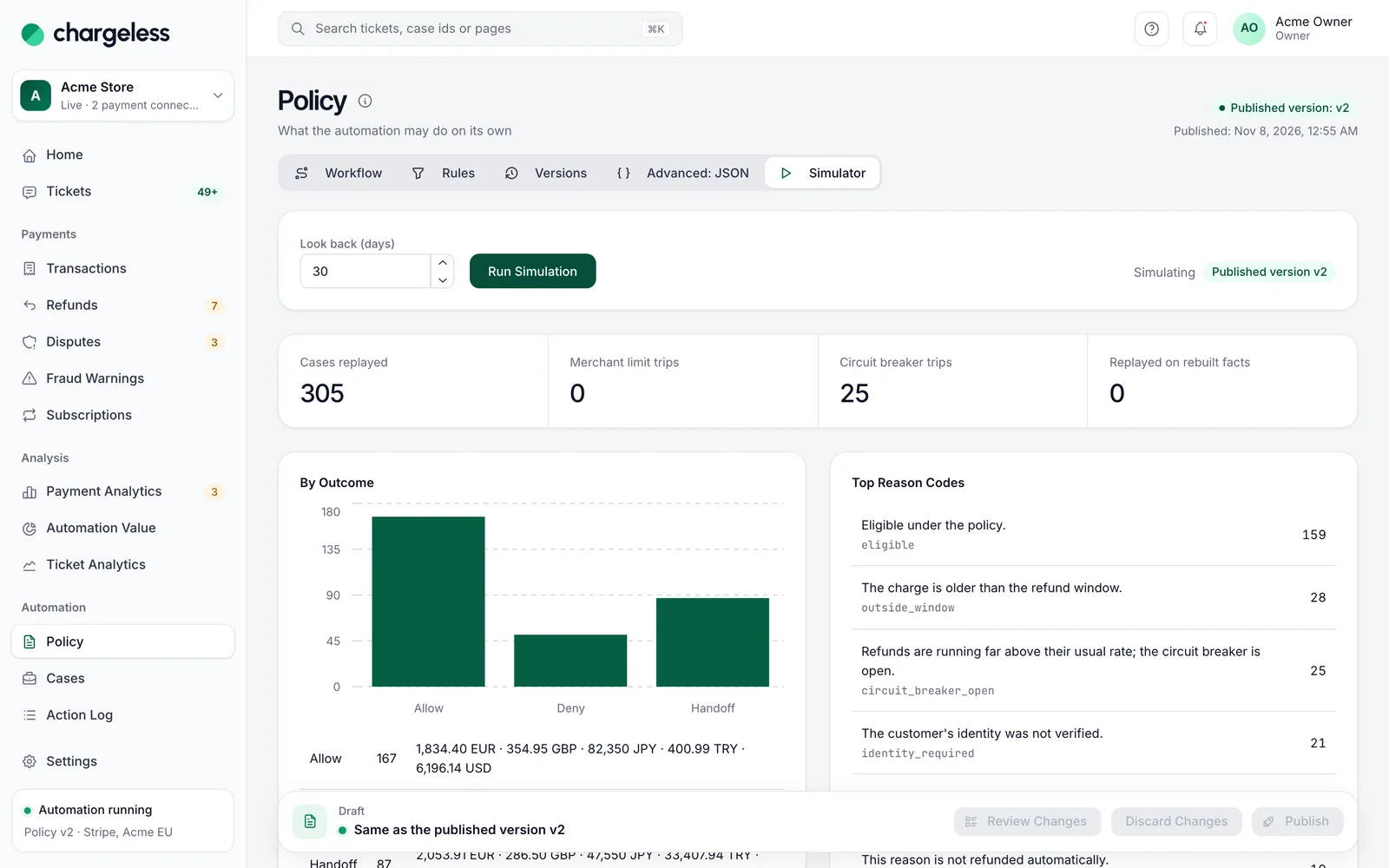
The simulator uses the facts recorded at each decision. Older cases without recorded facts are rebuilt from today's data and marked Rebuilt: their difference may come from the rebuild, not from your draft. The simulator does not replay disputes.
If your payments run on your own system, owners and admins also get Try Transactions: evaluate the draft against live transactions you pick, read-only.
A first policy, step by step
A sensible first week for most shops:
- Start from Balanced. Its amounts are in your main currency, with the preset's numbers unchanged: review each one. Then use Currencies You Charge In to add limits for every other currency you sell in.
- Refund Window: match your published refund terms (for example 14 or 30 days).
- Amount: start lower than you think, for example the price of your most common order. Raise it once you have seen a week of decisions.
- Reasons: keep "Charged twice" and "Forgot to cancel" automatic; these are the clearest cases. Leave "Other" to your team at first.
- Identity: if your customers sign in on your site, use Either and set up the signed token; otherwise Email code.
- Simulate This Draft over 30 days. Read Cases Whose Outcome Would Change: each one is a customer who would have been treated differently.
- Publish with a note ("First policy: 14 days, up to 50.00").
- After a week, open What Decided on the Workflow tab and Automation Value: the checks that hand off most are your next tuning candidates.
Where handed-off cases go
The policy decides whether a case goes to your team. Where it goes (the team queue in the panel, a webhook, or your helpdesk) is set in Settings. The Policy page shows the current destination under Where Handed-off Cases Go. See Tickets and Integrations.